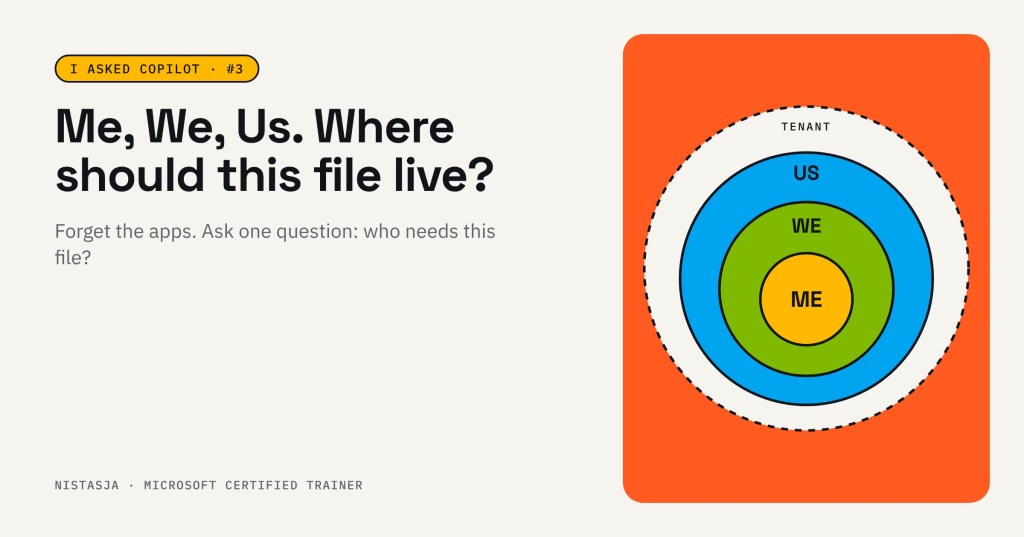
“Where do I save this?”
It’s the question I hear most in training. Not “how does Copilot work?” Not “what’s an agent?” Just: where do I save this file?
Welcome back to I Asked Copilot. We’ve tidied Outlook and turned OneDrive into a filing cabinet. Now the big one: Me, We, Us. Get this right, and you, your team and Copilot can all find things. Get it wrong, and files end up everywhere.
What I asked Copilot
I asked it the way my training groups ask me:
I never know where to save my files. When should I use OneDrive, Teams or SharePoint? Explain it simply, I’m not a tech person.
Copilot started with the simplest way to remember it:
- OneDrive = my files. “This is mine.”
- Teams = our project files. “This is ours.”
- SharePoint = company files. “This belongs to the business.”
And here’s the part I loved: it pointed to my own training slides as its source. It could only do that because they were saved somewhere it can see. Not in my Downloads folder. That’s this whole series in one moment.
It gave me one rule that covers most filing decisions: “Draft → OneDrive. Collaboration → Teams. Final/Official → SharePoint.”
It also put something into words that I hadn’t before: use SharePoint when a file “must still be available if someone leaves the business.” And it named the mistake most of us make: creating a document in OneDrive and leaving it there forever.
How far does your file travel?
Here’s how I explain it. Forget the apps for a moment, and think of circles.
Me, We, Us: the circles show who can see your file.
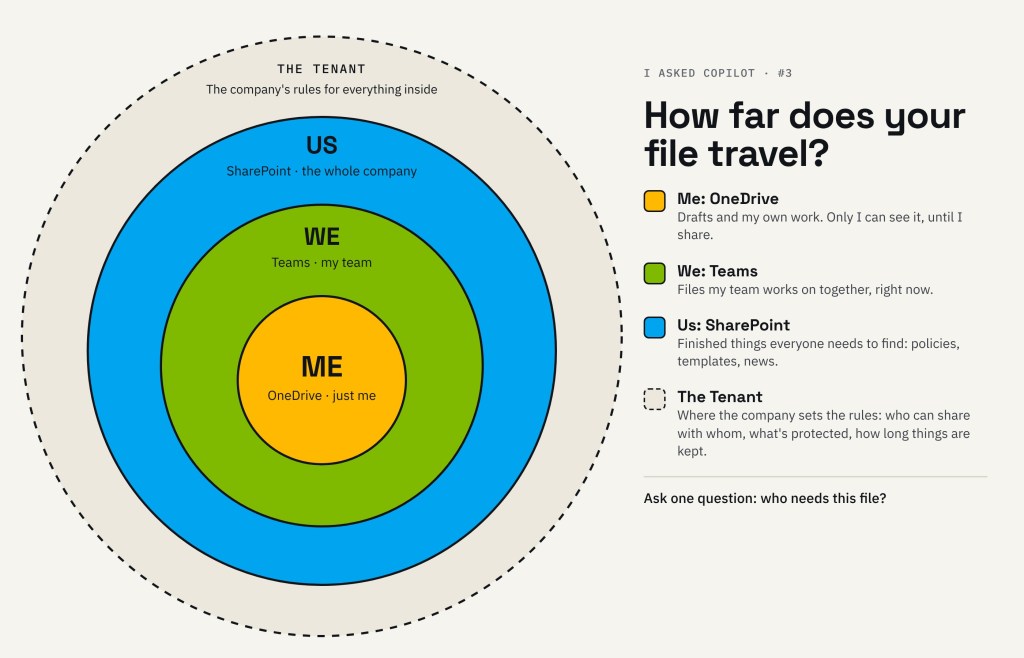
- Me: OneDrive. Your drafts and your own work. Only you can see it, until you share it.
- We: Teams. Files your team is working on together, right now.
- Us: SharePoint. Finished things the whole company needs to find: policies, templates, news.
- The Tenant. The circle around everything, where the company sets the rules: who can share with whom, what’s protected, and how long things are kept. Think of it as the body corporate rules. You don’t write them, but everyone lives by them.
The circles aren’t about which app you open. They’re about who needs to see the file. That one question makes the rest easy.
One file’s journey
Let’s follow one real file: a training plan.
- Me: it starts in OneDrive. The first draft is messy and half done. Nobody else needs to see it yet, so it lives in my OneDrive, named my way: “ClientA_Training Plan.docx”.
- We: it moves to Teams. When my team needs to work on it, I move it to our Team’s channel. Now we all edit the same file. No attachments, no “which version is the latest?”
- Us: the final version goes on SharePoint. When it’s done and everyone should be able to find it, it’s published on our SharePoint intranet.
- How to: What is SharePoint?
Same file, three circles. It travels outward as more people need it.
A fun fact most people don’t know
When you send a file in a one-on-one or group chat in Teams, it doesn’t go into a Team. Microsoft puts it plainly: “Files you send in chat are stored in your OneDrive for Business and only shared with the people in that conversation.” Files you upload to a channel are stored in the team’s SharePoint folder.
So it’s not the app that decides where your file lives. It’s who you share it with. Exactly what the circles show. (File storage in Microsoft Teams)
Want to go deeper on how Teams stores files? Tracy van der Schyff has a great post on it: What happens to my documents in Microsoft Teams?
Why this matters later
Automation is the foundation, and agents are the next floor.
An agent only knows what it can reach. If the final version of your policy is buried in someone’s OneDrive, an agent built for the whole company won’t find it. Put files in the right circle now, and that foundation is already there.
Try this
Next time you save a file, ask one question: who needs this?
- Just me, for now? OneDrive.
- My team, working on it together? Teams.
- Everyone, to find and read? SharePoint.
Or let Copilot help. Copy this prompt:
Here’s a file I’m working on: [describe it]. Who needs it, and where should it live: OneDrive, Teams or SharePoint? Explain why in one sentence.
Your quick-start checklist:
- Find 3 files in your OneDrive that your team actually works on
- Move one of them to your Team’s channel
- Find one finished file everyone needs, and ask where it should be published
- Before you send your next attachment, share a link instead
Ask. Learn. Try. Then try again.
Next time: I asked Copilot how to set up Teams so I can manage my team better.
Where do your files usually end up? Tell me in the comments. No judgement, I used to work from Downloads.



Leave a Reply