Why start with Outlook?
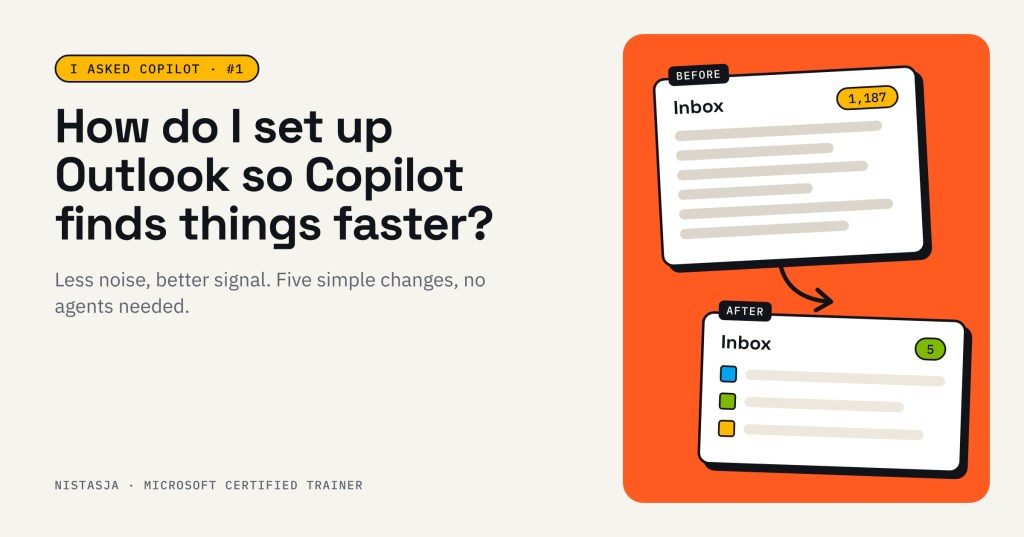
Over a thousand unread emails. Newsletters mixed in with client work. That was my inbox, and I was asking Copilot to find things in it.
Welcome to I Asked Copilot: a series for people and teams who aren’t tech experts, but want Copilot to make their workday easier.
Everyone wants to jump to the clever stuff. But Copilot can only help you with what it can find, and for most of us, our working life lives in Outlook.
So before we automate anything, we tidy up. Foundation first.
The problem: my inbox
Let’s be honest. Here’s what my inbox looked like. I’ve recreated it with made-up names, so no real client details show.
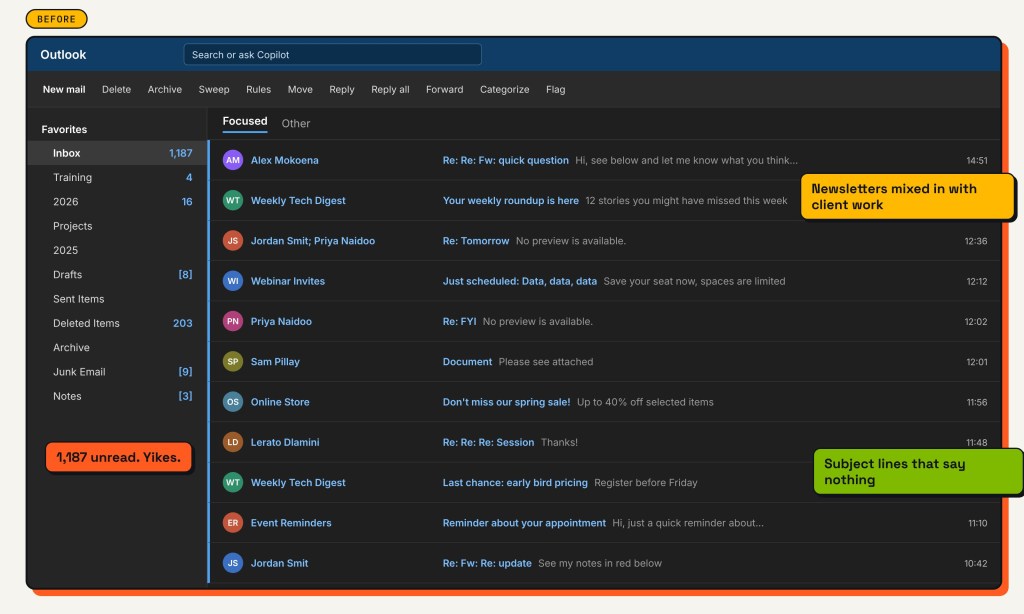
I could still find things, mostly. But when I asked Copilot to find something, it had to dig through all that noise too.
What I asked Copilot
I asked it in plain words:
How do I set up my Outlook so that you can find things faster? Keep it simple, I’m not a tech person.
Good to know: Copilot could look at my actual inbox because I use Microsoft 365 Copilot, which has access to my mailbox. With the free Copilot Chat, you may only get general tips.
Here’s what Copilot came back with (I’ve taken out client names).
First, it noticed I use Outlook for three very different things at once: client projects, running the business (finance, payroll, tax), and subscriptions, events and community updates.
Then it said: “For Copilot to find things faster, the goal is not more folders. The goal is better signal.” And it gave me 5 tips, which I walk through below.
And if you only do one thing today: a rule that moves newsletters, webinars and event emails into Read Later.
One thing I noticed: it said “not more folders” and then suggested two new ones. That’s not wrong. A Read Later and a Finance folder are about cutting noise, not filing everything. But it’s a good reminder to read what Copilot gives you and decide for yourself. You’re still accountable.
Copilot’s 5 tips, and how I did each one
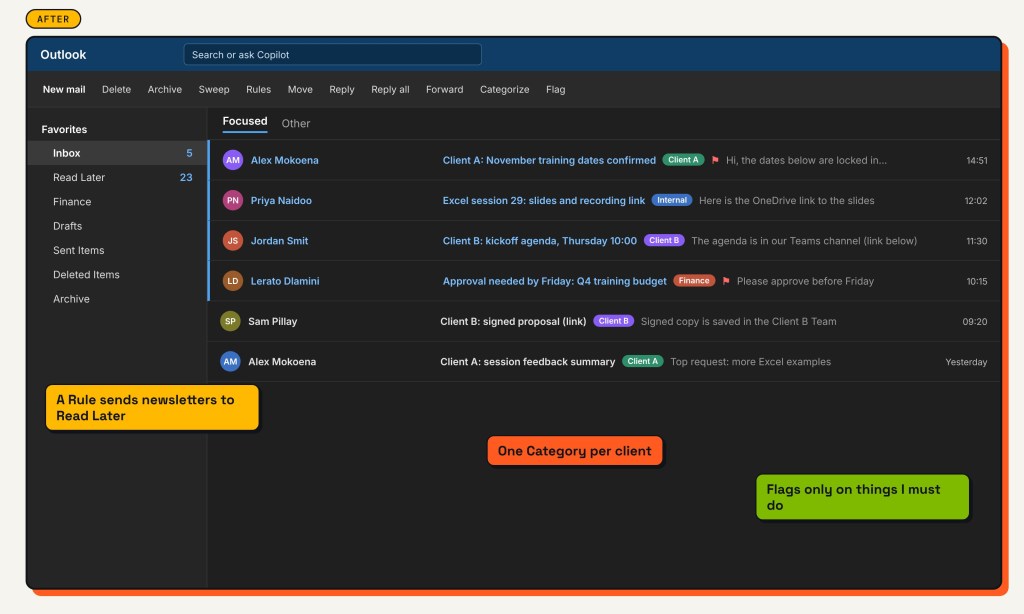
- Make a Read Later folder, filled by a rule. I created the folder and one rule that moves newsletters, event invites and community updates there automatically. They wait for a quiet moment instead of crowding my inbox.
- How to: Create a folder in Outlook and Set up rules in Outlook
- Use Categories for client work, not more folders. I made one category per client, plus one for Finance and one for internal work. A category stays on the email, whatever folder it’s in.
- Flag only action items. Need to do something? Flag it. Waiting on someone else, or just for reference? No flag. Now I can ask Copilot: “Show me all flagged emails from this week.”
- Keep finance apart. A Finance folder with its own rule. VAT, payroll and tax emails go there, away from client work.
- How to: the same folder and rules guides as tip 1
- Stop using the inbox as storage. Key files now live in SharePoint, OneDrive or Teams, and I share them as links. Email is for talking.
And two extras of my own, because you get to decide too:
- Archived the old stuff. Anything older than a month that needs no action. It’s still searchable, it just isn’t shouting at me.
- How to: Archive in Outlook for Windows
- Wrote clearer subject lines. “Quick question” became “Client A: training dates for November”. This helps Copilot, and the person reading it too.
Why this matters later
This isn’t just about a tidy inbox. Automation is the foundation, and agents are the next floor.
If one day you use an agent to help with your email, it will need the same things Copilot needs today: clear emails, less noise, and information in the right place. Do the tidy-up now, and that foundation is already there.
Try this
Copy this prompt into Copilot:
How do I set up my Outlook so that you can find things faster? Look at how I use my inbox and give me 5 simple changes I can make today.
Your quick-start checklist:
- Create a Read Later folder
- Make one rule that moves newsletters and event emails into it
- Create a Category for each client or project
- Flag only the emails you need to act on
- Archive everything older than a month that needs no action
Ask. Learn. Try. Then try again.
Next time: I asked Copilot to turn my OneDrive into the perfect filing cabinet.
Try the prompt, then tell me in the comments what Copilot said about your inbox. I’d love to hear it.



Leave a Reply