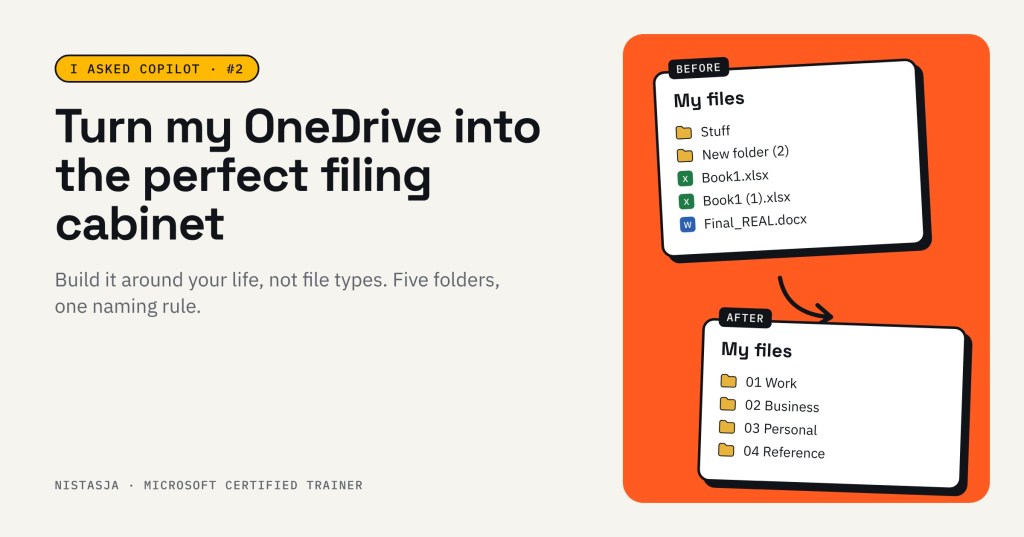
Why OneDrive is next
“Book1.xlsx.” “Book1 (1).xlsx.” A folder called “Stuff”. If that sounds like your OneDrive, you’re in good company. It sounded like mine. And honestly? I probably work more in my Downloads folder than anywhere else.
Welcome back to I Asked Copilot. Last time we tidied Outlook. This time it’s OneDrive: your Me space, where your own work lives before it’s shared with your team.
Same rule as before: Copilot can only help you with what it can find. And a messy OneDrive is hard to find things in, for you and for Copilot.
The problem: my OneDrive
Here’s roughly what it looked like. I’ve recreated it with made-up names, so no real client details show.
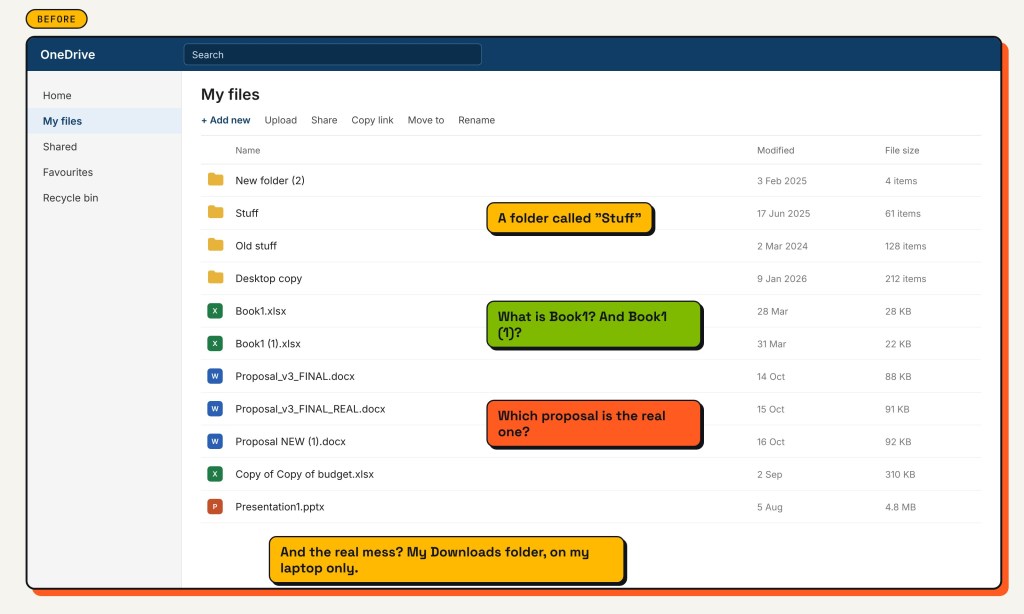
Before. File names are made up.
Files saved wherever was quickest. Five versions of the same proposal. Folders inside folders inside folders. I could find things, eventually. But “eventually” is not a filing system.
What I asked Copilot
I asked it in plain words:
Help me turn my OneDrive into the perfect filing cabinet. Keep it simple, I’m not a tech person. Give me a folder structure and a naming rule I can actually stick to.
Good to know: Copilot can search your files, but it may not see your whole folder layout at once. If its answer feels general, describe your folders or add a screenshot, and ask again.
Here’s what Copilot came back with (I’ve taken out client names).
Its big idea: “Build your OneDrive around your life, not around file types.” Folders called “Documents”, “PDFs” and “Presentations” fail, because six months later you can’t find anything.
Then it gave me a filing cabinet with just five top folders:
01 WORK
02 BUSINESS
03 PERSONAL
04 REFERENCE
99 ARCHIVE
Plus one naming rule for everything: YYYY-MM-DD Description.
One thing to think about: Copilot suggested a Personal folder for family, home and health. Infinite People is a family business, so I use my work account for my personal files too. It just makes things easier. But if you work for someone else’s company, personal files don’t really belong in your work OneDrive. Keep those in a personal OneDrive instead. Read what Copilot gives you, and decide what fits your situation.
Copilot’s tips, and how I did each one
- Five top folders, built around your life. 01 Work, 02 Business, 03 Personal, 04 Reference and 99 Archive. The numbers keep them in order. Inside Work, one folder per client, and inside each client the same few folders: Meetings, Deliverables, Training Material, Communications and Completed.
- One naming rule, but I chose my own: Client_What it is. Like “ClientA_Training Plan.docx” or “ClientB_Proposal.pdf”. Not for a client? Use the area instead: “Admin_Budget.xlsx”. Copilot suggested putting the date first, but I keep one document and keep working in it. A date in the name would be wrong after the first edit.
- One document, and version history does the rest. No more “Final Really Final”. I never save a new copy for changes. I keep working in the same file, and if I need an older version, OneDrive has it.
- A Downloads Inbox, emptied weekly. This was my big one. My laptop’s Downloads folder isn’t backed up, and Copilot can’t see it. So downloads now land in a “Downloads Inbox” folder in OneDrive. Once a week: keep it, move it, or delete it. Downloads is never storage.
- The 3-second rule: file by project first. Can’t decide where a file goes in 3 seconds? Put it in the project or client folder. You’ll remember “it was for Client A” long before “was it a PowerPoint?”
- Pin your top folders. Work, your current client, Training and Archive, each one click away. Most of your files should be one click from where you start.
And one extra of my own: if other people work on a file, it doesn’t belong in my OneDrive. It moves to the team’s space in Teams or SharePoint. More on this next time.
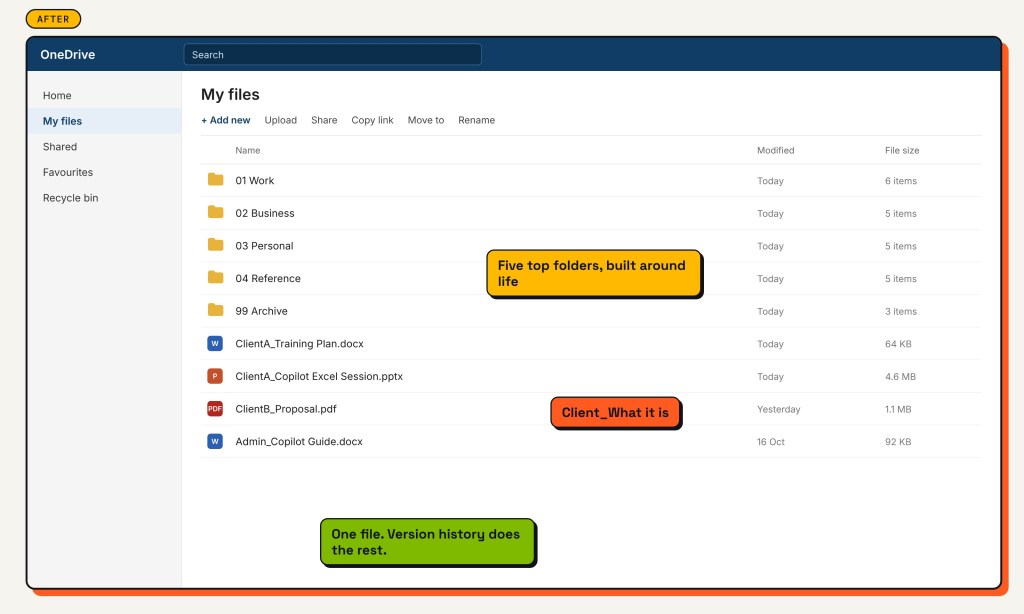
After. File names are made up.
Why this matters later
Automation is the foundation, and agents are the next floor.
An agent that helps with your files needs the same things Copilot needs today: one version of each file, names that make sense, and files in the right place. Tidy your OneDrive now, and that foundation is already there.
Try this
Copy this prompt into Copilot:
Help me turn my OneDrive into the perfect filing cabinet. Suggest a simple folder structure and one naming rule for my files. Keep it to 5 changes I can make today.
Your quick-start checklist:
- Create your five top folders
- Pick one naming rule and write it on a sticky note (mine: Client_What it is)
- Make a Downloads Inbox, and empty it once a week
- Rename the 10 files you use most
- Delete the extra copies, and trust version history
Ask. Learn. Try. Then try again.
Next time: Me, We, Us. Where should this file live: OneDrive, Teams or SharePoint?
Try the prompt, then tell me in the comments what Copilot suggested for your OneDrive. I’d love to see it.



Leave a Reply