Last week I wrote a post on LinkedIn about how I use Copilot to prep for my meetings. Before I leave the house, I ask it what each meeting is about, who’s going to be there, what we said last time and what I still need to follow up on.
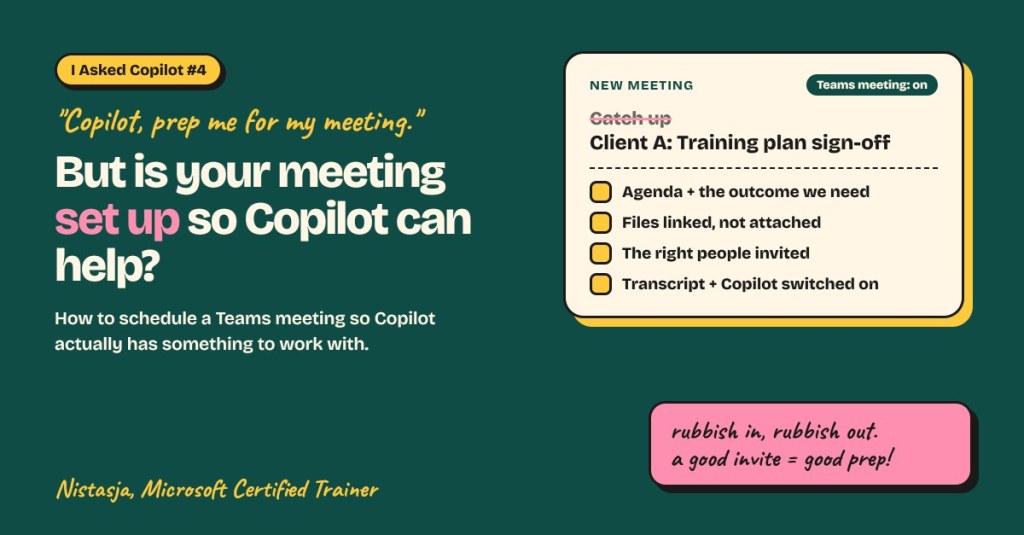
But after I posted it, something kept bugging me. It’s so easy to say “I use Copilot to prep for my meetings.” What I didn’t think about is this: are we actually scheduling our meetings in a way that lets Copilot help us prep?
Because Copilot can only prep you with what you give it. If the meeting invite says “Catch up”, has no agenda, no files and half the wrong people on it, Copilot has nothing to work with. You’ll get a polite, vague summary that doesn’t really help.
So this week I asked Copilot a different question. Not “prep me for my meeting”, but:
“How should I schedule a meeting in Teams so that you can help me properly before, during and after it?”
Here’s what I learned, in plain language.
First, what does Copilot actually look at?
When you ask Copilot to prep you for a meeting, it looks at things like:
- The meeting title
- The description in the invite (your agenda)
- Files linked in the invite or shared in the meeting chat
- Who is invited, and your recent emails and chats with them
- Past meetings in the same series, if they were recorded or transcribed
If those things are empty or messy, the prep is empty or messy. Rubbish in, rubbish out.
The catch: it depends on who scheduled the meeting
Before we get to the steps, here’s something important to keep in mind. Almost everything below is in the hands of the meeting organiser, the person who sent the invite.
- The invite is theirs. The title, agenda, attendees and linked files are set by the organiser. If you’re only an attendee, you can’t change them.
- The meeting options are theirs too. Recording, transcription and the Copilot setting are chosen by the organiser. If they turn the transcript off, or set Copilot to “Only during the meeting”, there’s no recap afterwards, no matter what you do.
- Some settings belong to your IT team. Your organisation might switch off automatic recording, limit who can transcribe, or not give everyone a Copilot licence. So if you can’t find a setting I mention, it’s probably not you. It’s policy.
- Meetings with other companies follow their rules. When someone outside your organisation sends the invite, their settings apply. And Copilot can only use files you actually have access to.
So what can you do when you’re not the organiser?
- Ask nicely. “Could you add a short agenda to the invite?” is a perfectly normal request.
- Share your files in the meeting chat beforehand, as OneDrive or SharePoint links.
- Keep your own notes in a Loop or OneNote page and point Copilot to it when you ask for prep.
- Let Copilot use what it can see. Your recent emails and chats with the attendees still help a lot.
And when you are the organiser? Then the steps below are all yours.
Step 1: Give the meeting a title that says what it’s about
“Catch up”, “Sync” and “Quick chat” tell Copilot nothing. Neither do they tell your attendees anything.
Try a title that answers: who, what, and why.
- Instead of: Catch up
- Try: Client A: Training plan sign-off for phase 2
Now Copilot knows which client, which document and what decision is needed.
Step 2: Write a short agenda in the description
You don’t need an essay. Three things are enough:
- Why we’re meeting (one line)
- What we’ll talk about (two to four bullet points)
- What we need to walk out with (the decision or outcome)
Tip: if you have a Microsoft 365 Copilot licence, you’ll see an option in the meeting invite for Copilot to help you write a short agenda. Use it as your starting point, then check that it says what you need to walk out with.
Example:
Why: Sign off the phase 2 training plan. Topics: Training dates, who attends which session, open questions from UAT. Outcome: Approved plan and dates confirmed.
That last line is the magic one. When Copilot knows the outcome you want, it can tell you what’s still missing before you walk in.
Step 3: Link the files, don’t attach them
If you attach a file to the invite, everyone gets their own copy. Copilot (and your attendees) can easily end up looking at an old version.
Instead, share a link to the file in OneDrive or SharePoint. That way there is one file, it stays up to date, and Copilot can read the latest version when it preps you.
Step 4: Invite the right people (and only the right people)
Copilot uses the attendee list to pull in your recent emails and chats with those people. So:
- Add the people who actually need to be there as Required
- Add “nice to know” people as Optional
- Don’t invite the whole team “just in case”
A tidy attendee list means Copilot pulls in the conversations that matter, not noise.
Step 5: Make it a Teams meeting
Sounds obvious, but check that the Teams meeting toggle is on when you schedule from Outlook. Copilot’s in-meeting and after-meeting help (recaps, action items, “what did I miss?”) only works in Teams meetings.
Step 6: Set up the meeting options before the day
Open the meeting in your Teams calendar and go to Meeting options. Look for:
- Record and transcribe automatically: turn this on if your organisation allows it, so you don’t forget on the day.
- Copilot: choose During and after the meeting if you want Copilot to be able to recap the meeting afterwards. (“Only during the meeting” means Copilot can help while you’re in it, but there’s nothing to look back on later.)
Always let people know the meeting will be recorded or transcribed. That’s just good manners, and in many organisations it’s policy.
Step 7: Use a series for ongoing work
If you meet about the same project every week, use one recurring meeting instead of a new invite every time. The meeting chat, files and recaps all stay in one place, so Copilot can look back at what was decided last time and what’s still open.
BIG NOTE: Always respond to your invites. Accept, decline, or mark it as Tentative and come back to it later. Copilot looks at your calendar to work out which meetings you’re actually going to. If you never respond, it can’t tell the difference between the meeting that matters and the one you’re ignoring.
Now ask Copilot to prep you
Once your meeting is set up properly, the prep actually works. A few prompts to try in Copilot Chat:
“Prep me for my Client A: Training plan sign-off meeting. What do I need to know, and what’s still open?”
“Summarise the latest emails and chats with the people in my 10:00 meeting.”
“Based on the agenda and the linked training plan, what questions are they likely to ask me?”
The quick checklist
Before you click Send on your next meeting invite:
- Clear title: who, what, why
- Short agenda with the outcome you need
- Files linked from OneDrive or SharePoint, not attached
- Right people as Required, extras as Optional
- Teams meeting toggle on
- Meeting options: transcript and Copilot set the way you want
- Recurring meeting for ongoing work
What I took from this
Copilot is a great meeting assistant. But like any assistant, it can only be as good as the brief you give it. Two extra minutes when you schedule the meeting saves you twenty minutes of scrambling before it.
Set the meeting up properly once, and Copilot does the rest.
Wondering if your team is ready for Copilot? Try the free Copilot Readiness Checklist from Infinite People. It’s 22 questions and takes about 10 minutes.
Ask. Learn. Try. Then try again.
Nistasja, Microsoft Certified Trainer



Leave a Reply